
Fastback is pleased to inform you that we have implemented a new module that will allow you to organize the transportation of your vehicles internally in a simple and efficient way.
The module allows you to manage the transportation of vehicles from one delivery location to another. These deliveries are made by carriers who will physically move the car(s). This module within Fastback therefore allows you to plan and have an overview of all transports.
1. How to assign a vehicle?
To indicate that a vehicle is to be transported, you have to go to the file of this one (Stock VO, dealers, Demos, ...) and in the tab "Purchase order" (in the framework of a vehicle of the stock VO & dealers) or in the tab "Technical file" (in the framework of a vehicle of the stock preparations).
There are 2 drop-down lists that allow you to stipulate the point of departure of the vehicle and its point of arrival. The options available in this list are the different delivery points that were encoded in the tab "Management of delivery locations".
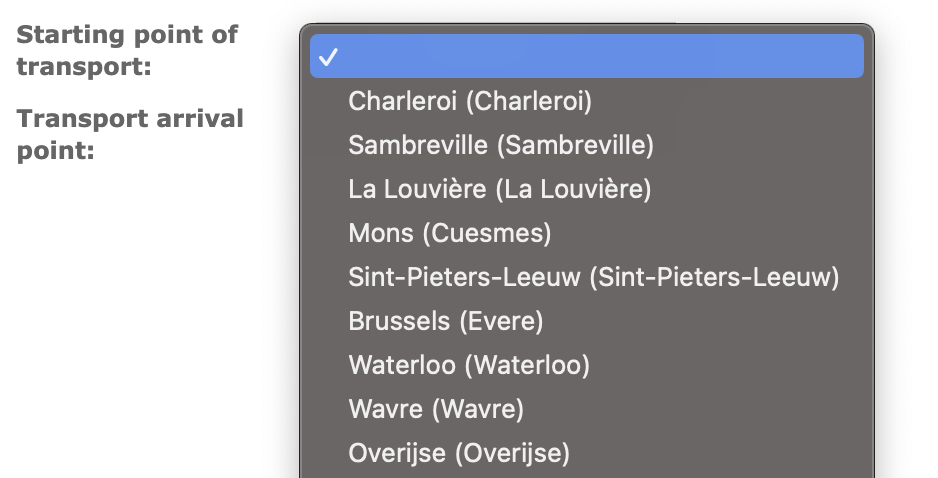
A third drop-down list allows you to choose the planning, i.e. the route that will be concerned. These routes are those defined in the "Transport management" tab.
2. How to access the transport module?
A new tab "Transport" is available via the menu bar of the Fastback program.
In this menu you will find different tabs that allow you to manage the entire transport module:
Carrier management: Allows you to create, modify and delete the different carriers in the system (name, first name, email address, type of license, ...)
Transport management: The calendar on which you can plan transports and from which you can assign cars to this transport
Management of delivery locations: Similar to the management of carriers, you can create delivery locations by specifying address, type, ...
Trip management: Allows you to view all the trips that have been created (Note that a trip created is not necessarily a planned trip. A trip is planned if it is in the calendar)
3. Carrier management
The page offers a listing of carriers that are encoded in the system with all operations already present in Fastback (creation, filter, listing, ...).
For each carrier, there is a personalized calendar that allows you to enter your days off (and therefore to specify the days when a trip cannot be made).
Once a carrier is created, he will receive an email with a url that allows him to connect to a personalized interface where he will find a listing of all the transports he has to do with:
- The places of deliveries
- The vehicles to be transported
- The possibility to put a comment on each step of the journey
- The possibility to change the status of a stage of a journey (In progress, delivered)
4. Management of delivery locations
Delivery locations can be created, deleted and modified via this interface. Delivery locations allow you to specify at which stage of a journey the carrier is supposed to go.
5. How do I enter a new trip?
When creating a trip you must specify general information about it:
- The name
- The number of slots
- The duration (in hours, we consider that a trip will never last more than one day)
- The color code (in order to be able to differentiate 2 similar trips on the calendar, a colorbox will be added here in a future update)
- The carrier who will take care of the trip
On the right it is possible to create stages by specifying each time the place of arrival. A trip can have as many stages as you want.
6. How do I manage my trips?
This page allows you to list all the trips that have been created (and create a new one). For each of them, it is possible to see the different steps that constitute it.
7. How do I manage my transportation planning via my calendar?
On the left side of the page you will find all the trips that are to be planned. The planning can be done by drag & drop on the calendar. It is possible to adjust the duration of the trip by stretching the block.
Once a trip is planned, it is possible to click on it to see the vehicles that are already planned on this transport and (if there is still room) to add more.
The assignment of vehicles to a stage is done by clicking on the "Add Vehicle" button, which will add the vehicles that have been marked as to be transported.
On this page there are 3 buttons allowing respectively to add a vehicle to the concerned trip, to add a stage to this same trip and to visualize the view of the carrier.
8. How do I enter a vehicle?
Depending on the chosen starting and ending point, the vehicle will be automatically added to the route once the car has been registered.
9. How to add a stage to the carrier's route?
You can also add a stopover to the current trip. It will be added in the system between the 2 selected stops.
Do you have a question about our transport module?
On your platform, you have a support button that allows you to make a ticket, do not hesitate to use it because we treat your requests in a priority way! No more worries with our new ticketing system!*
And more! You can attach all kinds of documents....
We are available from 9:00 am to 5:00 pm from Monday to Friday by phone at 081 72 85 40.

*How to create a ticket? Nothing could be easier! Click on this link to help you:
https://fastbackhelp.zendesk.com/hc/en-us/articles/4405175191953-How-to-use-the-new-ticketing-system-?auth_token=eyJ0eXAiOiJKV1QiLCJhbGciOiJIUzI1NiJ9.eyJhY2NvdW50X2lkIjoxMDcxMDQyMCwidXNlcl9pZCI6bnVsbCwidGlja2V0X2lkIjpudWxsLCJkZWZsZWN0aW9uX2lkIjozNjAyNDMzOTEyMzcsImFydGljbGVzIjpbNDQwNTE3NTE5MTk1MywzNjAwMTk4NDA2NTcsNDQwNTgxNTU0NTM2MV0sInRva2VuIjpudWxsLCJleHAiOjE2MzY3OTY2NTR9.zIbTaJzgQB-A0AG4isuhlLM0ZxOKqClCIRAILuzqkkI
Comments
0 comments
Please sign in to leave a comment.